
Appearance
Getting Started with Momentum
Welcome aboard! This guide helps you install, set up and start customizing Momentum for your Shopify store. Think of it as your quick-start checklist: by the end you're ready to build a store that reflects your brand, without touching a single line of code.
Overview
Momentum is a flexible Shopify theme designed for easy setup and full customization. In this guide we cover:
- Installing Momentum
- Navigating the Online Store Editor
- Working with templates, sections and blocks
- Saving, publishing and creating backups
- Keeping Momentum up to date
Let's dive in!
1️⃣ Installing Momentum
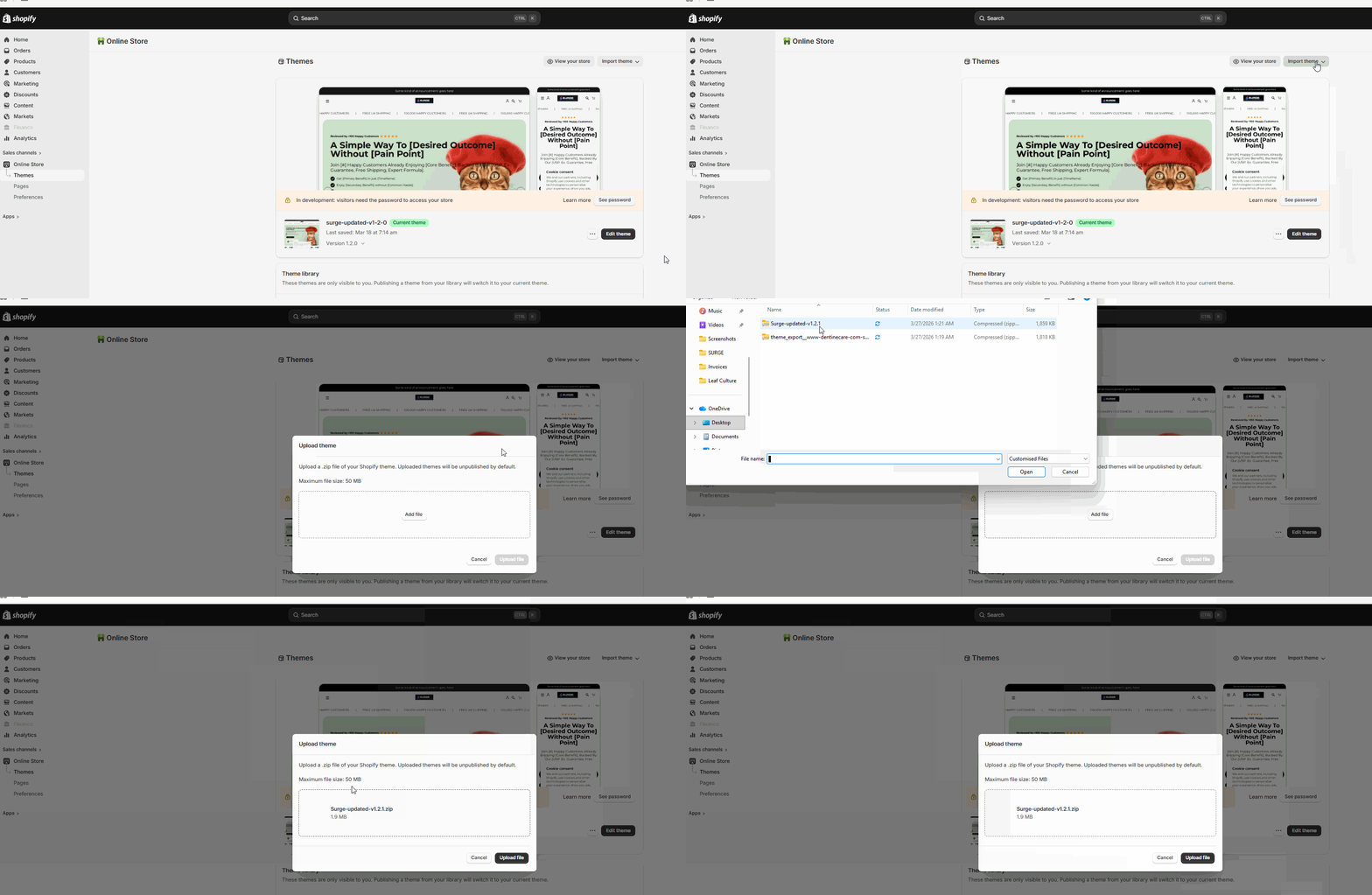
You get Momentum as a .zip file. Installing it is quick:
- Go to Online Store → Themes in your Shopify admin
- Click Add theme → Upload ZIP file and select the .zip file
- Momentum appears in your theme library
Pro tip: Keep a second theme in your library so you can test changes safely without affecting your live store.
2️⃣ Open the Online Store Editor
The editor is where your store comes to life:
- Click Customize next to Momentum on your Themes page
- The live editor opens with your storefront and the editing sidebar
- Adjust layouts, colors, fonts, images and more
Pro tip: You can preview your store on desktop and mobile right in the editor.
3️⃣ Working with Templates
Momentum includes ready-made templates for every part of your store:
- Home page: the landing hub for shoppers
- Product pages: showcase items with images, descriptions and add-to-cart buttons
- Collection pages: group products together
- Cart: what customers are buying before checkout
- Custom pages: "About us", "FAQ" or anything unique
Tip: You can create several template versions (e.g. different product layouts) and assign them as needed.
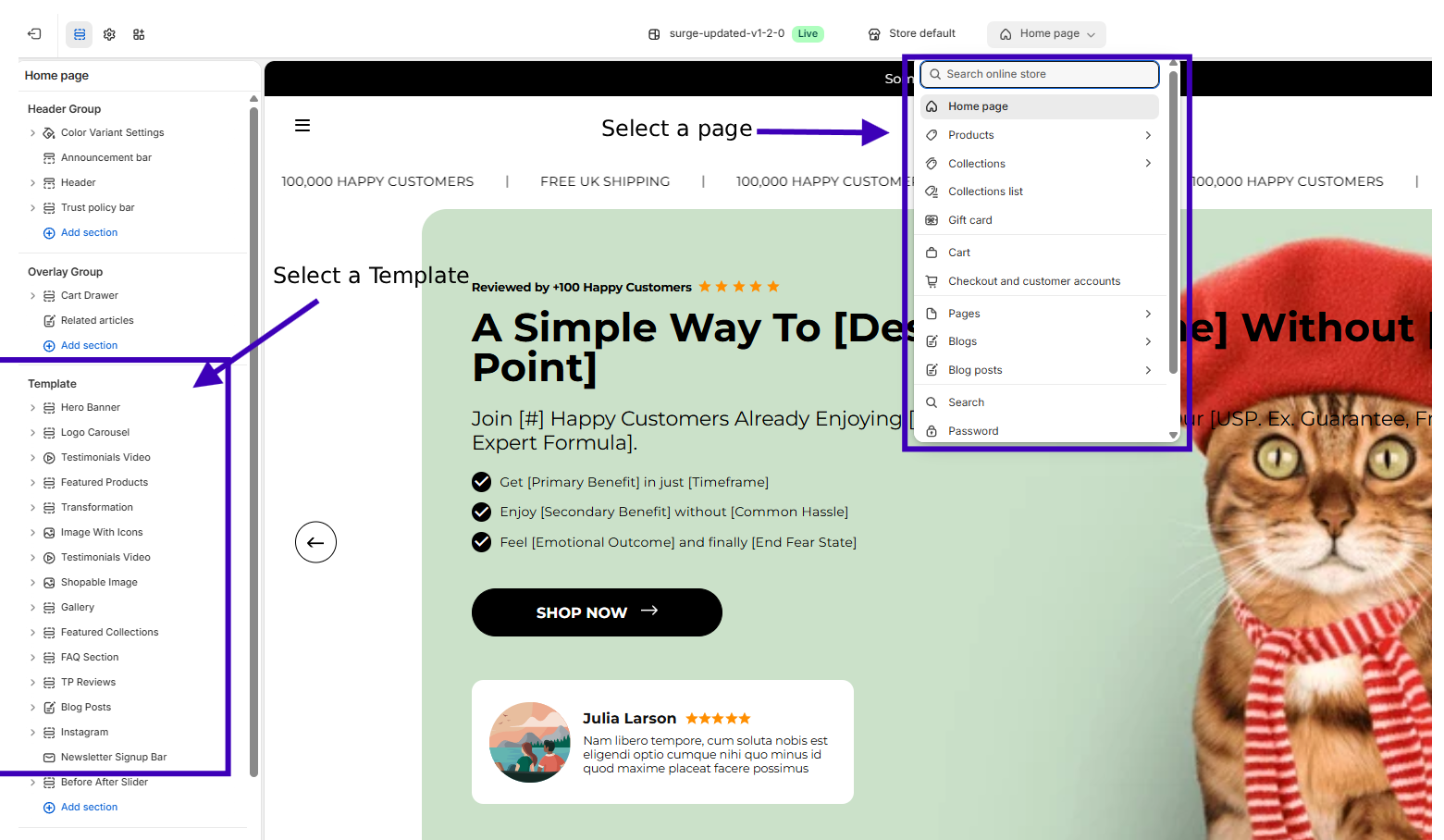
See Creating Custom Product Templates.
4️⃣ Editor Basics: Sections & Blocks
Everything in Momentum is drag-and-drop friendly:
- Sections: large building blocks (header, footer, product grid)
- Blocks: smaller elements inside sections (buttons, text, images)
- Drag and drop to reorder elements
- Customize every section and block
Tip: Preview layouts on desktop and mobile to make sure your store looks right everywhere.
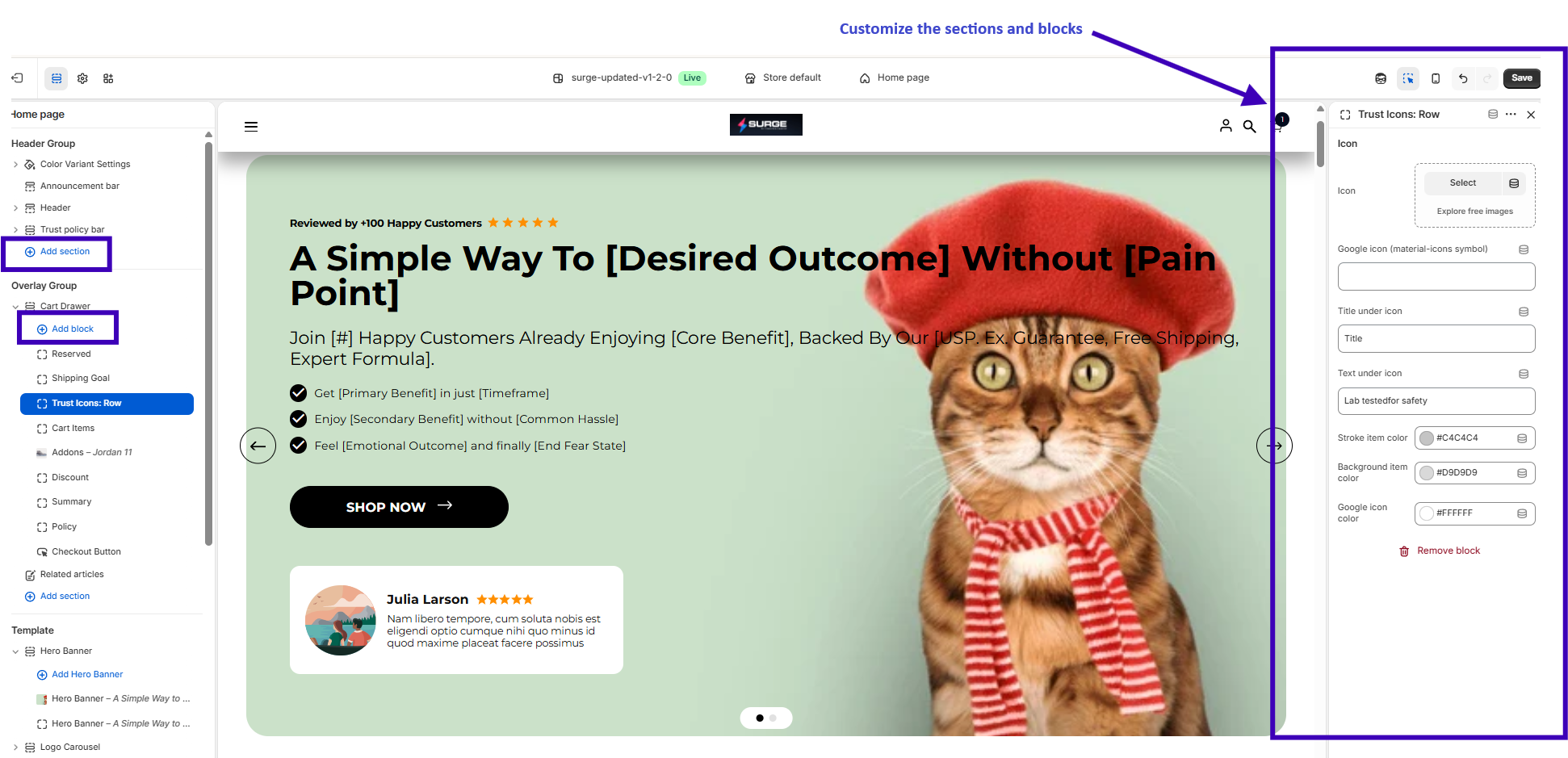
See Sections & Blocks.
5️⃣ Saving, Publishing & Backups
Keep your progress safe and your store live:
- Save often to avoid losing work
- Publish when the changes are ready for customers
- Duplicate your theme before big changes. This creates a backup copy, so you can experiment freely.
6️⃣ Keeping Momentum Up To Date
New Momentum versions bring new features and fixes. With the Momentum Theme Updater you update your live theme without losing your settings, texts or custom code. See Updating Momentum Theme and the Changelog.
You're Ready to Go!
Your Momentum theme is installed and ready to customize. Dive into sections and blocks to bring your brand to life.