
Appearance
Global Theme Settings - Gift Card
Gemini said
The Gift Card section allows you to customize the digital gift card experience. This ensures that when a customer receives a gift card from your store, it feels like a premium, branded experience rather than a generic notification.
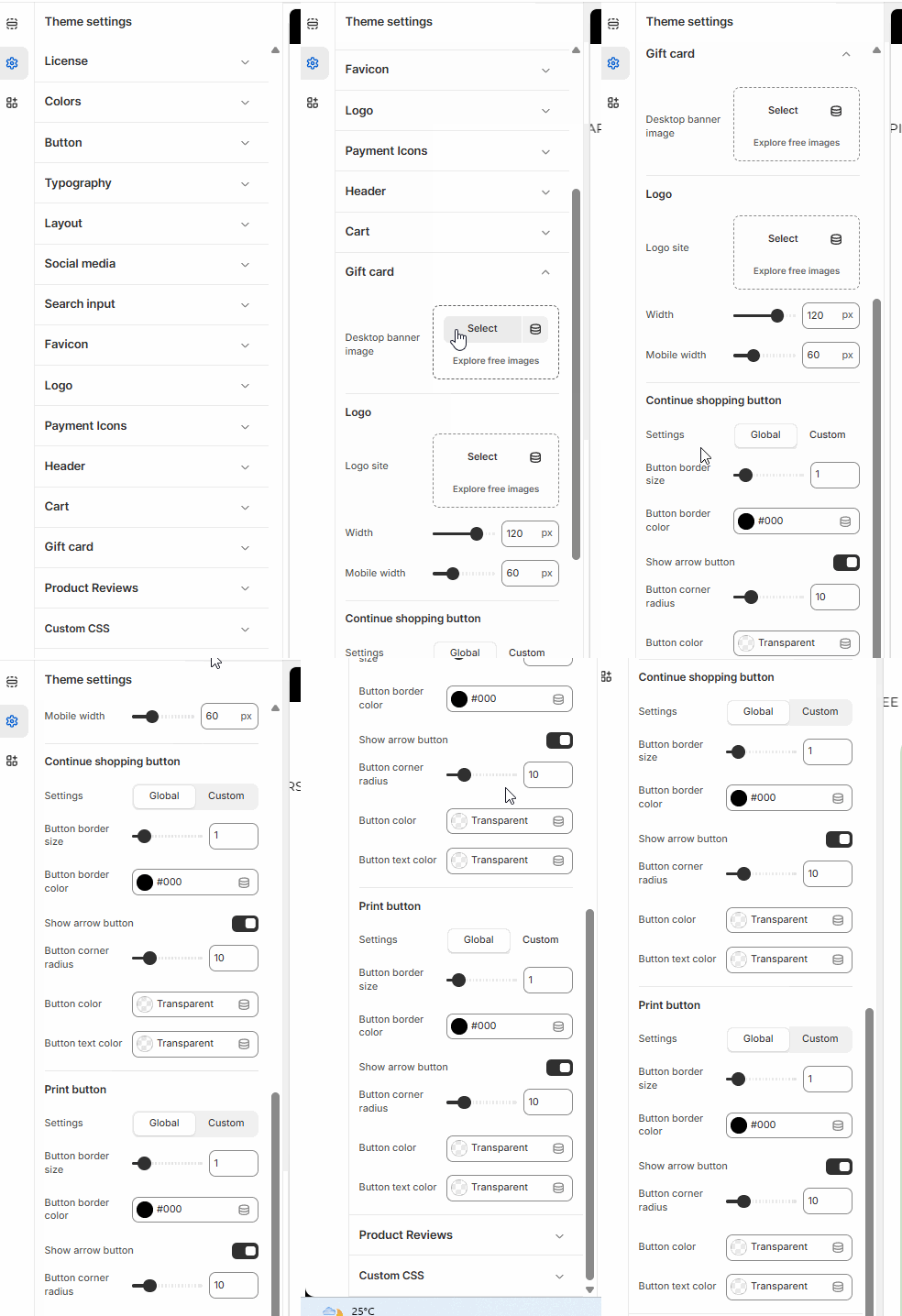
In this section, you can upload a custom Gift card image. This graphic will be displayed on the gift card page that customers see after they make a purchase or receive a gift. It is the primary visual representation of your store's "digital currency."
Design Tip: Use a landscape-oriented image (e.g., 1200 x 800px) that features your logo or a "Thank You" message. High-contrast, clean designs usually look best on the digital card layout.
How to Customize Your Gift Card
Follow these steps to update your gift card design:
Open the Theme Editor: From your Shopify Admin, go to Online Store > Themes.
Customize: Click the Customize button on your Momentum theme.
Open Theme Settings: Click the Gear icon (⚙️) in the left-hand sidebar.
Select Gift Card: Scroll down the list of settings and click the Gift card accordion.
Upload Your Artwork: Click the Select image button to upload your custom design or choose a file from your existing library.
If you don't have a custom design yet, you can use Explore free images to find a high-quality placeholder.
Preview the Look: You can view your changes by using the page selector at the top of the editor and navigating to Others > Gift card.
Save: Click Save in the top right corner.