
Appearance
Global Theme Settings - Payment Icons
The Payment Icons section allows you to manually showcase the trusted payment methods your store accepts. Displaying these icons helps build immediate trust with your customers and reduces friction during the checkout process.
In this section, you can upload specific images for up to seven different payment methods (e.g., Visa, Mastercard, PayPal, Apple Pay). Unlike the automatic icons generated by Shopify based on your gateway, these manual slots give you full control over which logos appear and in what order.
Tip: Use consistent, high-quality icons with transparent backgrounds to ensure they look professional across all sections of your store, such as the footer or product pages.
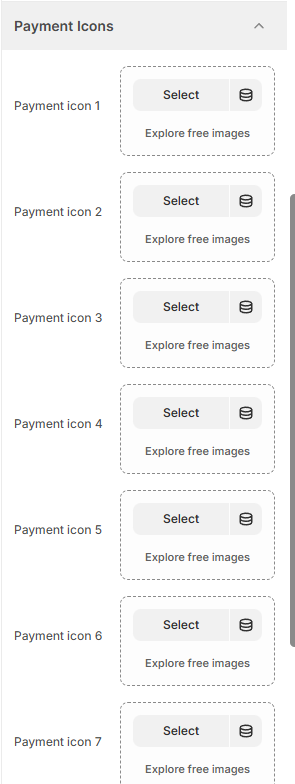
How to Add Payment Icons
Follow these steps to display your accepted payment methods:
Open the Theme Editor: From your Shopify Admin, go to Online Store > Themes> Edit Theme.
Open Theme Settings: Click the Gear icon (⚙️) in the left-hand sidebar.
Select Payment Icons: Click on the Payment Icons accordion to expand the list.
Upload Your Icons: For each slot (Payment icon 1 through Payment icon 7):
Click Select to upload an icon from your computer or choose one from your library.
Use Explore free images if you need generic payment placeholder icons.
Organize: Icons will appear on your site in the order they are filled (1 through 7). Leave a slot empty if you do not need all seven.
Save: Click Save in the top right corner to update your store.
Payment Text Row on the Product Page (Add to Cart Block)
Below the Add to cart button, the product page can show a short trust line next to your payment icons (for example "Secure checkout - 30 day returns"). You control it inside the product section: select the Add block and scroll to the Payment Methods settings.
Payment icons text: The text itself (rich text). Leave empty to hide the whole row.
Show icon next to payment text: Turns the small icon in front of the text on or off. Off means text only.
Payment google icon: Type the name of any Google Material icon (for example lock, verified_user, local_shipping) to replace the default lock symbol.
Payment icon color: Colors the icon - works for the default lock and for a Google icon.
Guarantee and payment alignment: Aligns the text row and the payment icons left, center or right.
Guarantee and payment alignment (mobile): Separate alignment for mobile, or keep "Same as desktop".