
Appearance
Global Theme Settings - Typography
The Typography section allows you to control the visual personality of your store by selecting fonts for your headlines and body text. Choosing the right font balance is key to creating a professional brand aesthetic and ensuring your content is easy to read.
Summary
In Momentum, typography is split into two main categories: Headings (for titles and section headers) and Body (for product descriptions, blog posts, and general text).
Note: Using custom web fonts can impact your site's loading speed. For the fastest possible performance, consider using "System Fonts," which are pre-installed on your customers' devices.
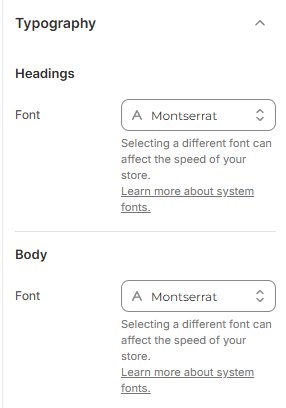
How to Access and Customize Typography
Follow these steps to update your store’s fonts:
Open the Theme Editor: From your Shopify Admin, go to Online Store > Themes > Edit Theme.
Open Theme Settings: Click the Gear icon (⚙️) in the left-hand sidebar to access global theme settings.
Select Typography: Click on the Typography accordion to expand the options.
Change Fonts: * Under Headings, click the font selector to choose a new typeface for your titles.
Under Body, click the font selector to choose a new typeface for your paragraph text.
Save: Click Save in the top right corner to apply your changes to the live store.