
Appearance
Breadcrumbs Section
Overview
The Breadcrumbs section in the Momentum theme helps display a clear navigation trail that shows visitors where they are within your store and how they got there. It typically appears near the top of a page and follows a simple hierarchy such as:
Home → Collection → Product
This improves usability by allowing customers to quickly jump back to previous pages, reduces friction when browsing multiple collections, and provides helpful context, especially for larger catalogs.
As shown in the image above, the Breadcrumbs block is managed directly from the Header Group and can be enabled or disabled across different page types.
How Breadcrumbs Work
Once enabled, breadcrumbs automatically adapt to the page a visitor is viewing:
On collections, they show the path from Home to the current collection.
On products, they reflect the collection and product relationship.
On pages, blogs, and articles, they provide clear location context within your site structure.
No manual linking is required—the trail is generated dynamically based on the page type.
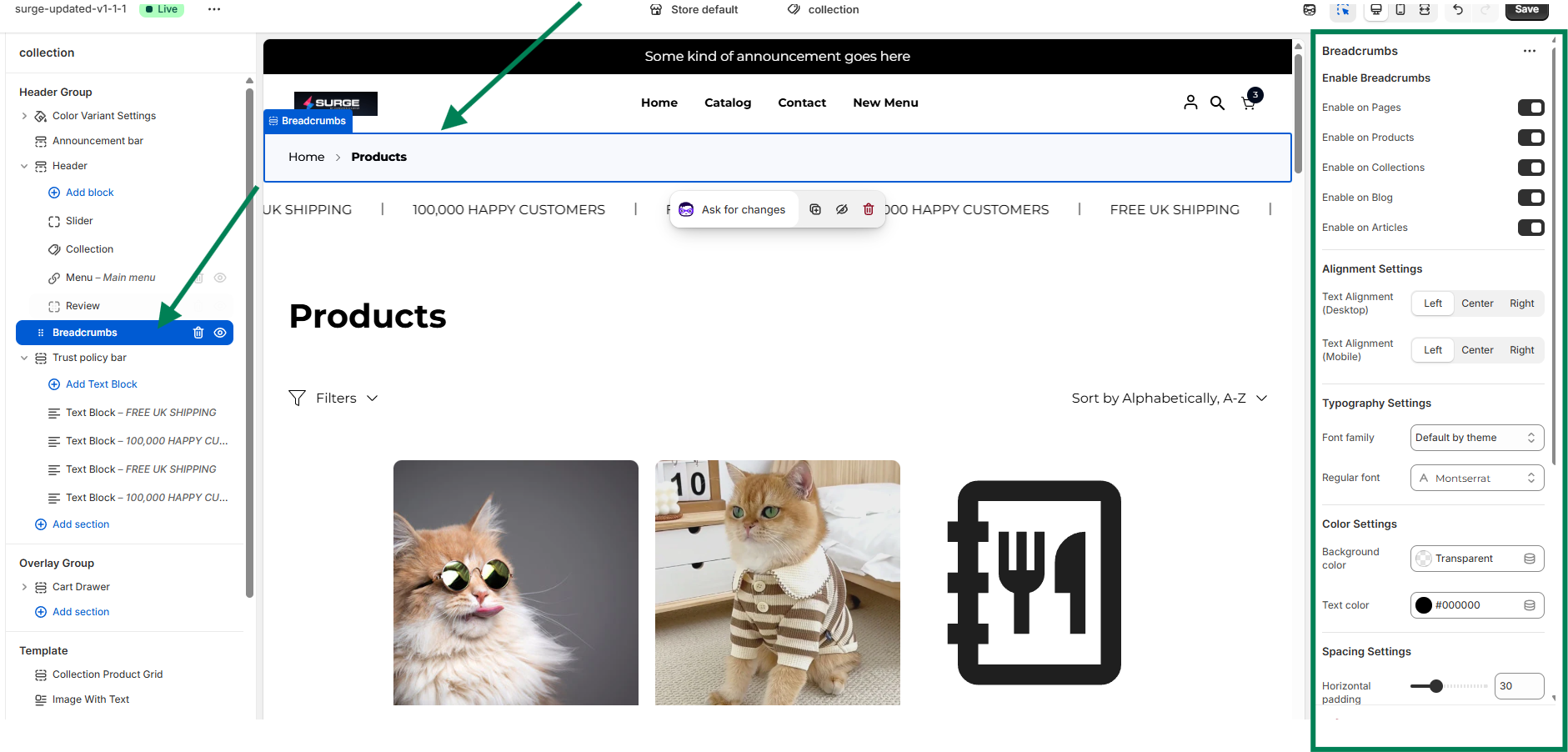
Step-by-Step: Enabling and Customizing Breadcrumbs
Open the Theme Editor
Go to Online Store → Themes
Click Edit Theme on your Momentum theme.
Locate the Breadcrumbs Block
In the left sidebar, expand the Header Group
Select Breadcrumbs
Enable Breadcrumbs
Toggle Enable Breadcrumbs on
Choose where they should appear by enabling them on:
Pages
Products
Collections
Blog
Articles
Adjust Alignment
Set Text Alignment (Desktop): Left, Center, or Right
Set Text Alignment (Mobile) independently for better responsiveness
Customize Typography
Choose a Font family
Set the Regular font style to match your brand typography
Style Colors
Adjust the Background color (or keep it transparent)
Set the Text color for optimal contrast and readability
Fine-Tune Spacing
Use Horizontal padding to control how wide the breadcrumb area appears
Save Your Changes
Click Save to apply the updates to your store
Best Practices
Keep breadcrumbs enabled on product and collection pages for the best customer experience.
Use subtle colors so breadcrumbs support navigation without overpowering page headings.
Align breadcrumbs consistently with your store’s overall layout (left-aligned is most common).
Need Help?
If you have questions, need help styling your breadcrumbs, or want to confirm the best setup for your store, we’re happy to assist.
If you need help, contact our support team and we'll be happy to assist.
Our support team will be glad to help you get the most out of the Momentum theme.