
Appearance
Price Block (Product Section)
Overview
The Price block in the Momentum Theme is where your product pricing is displayed along with real-time stock messaging. It not only shows the price of the selected variant, but also communicates availability through customizable text and color controls.
This helps customers instantly understand whether a product is available and ready to ship — improving clarity and conversions.
What the Price Block Controls? Product Price Display
Displays the current price of the selected product or variant directly on the product page.
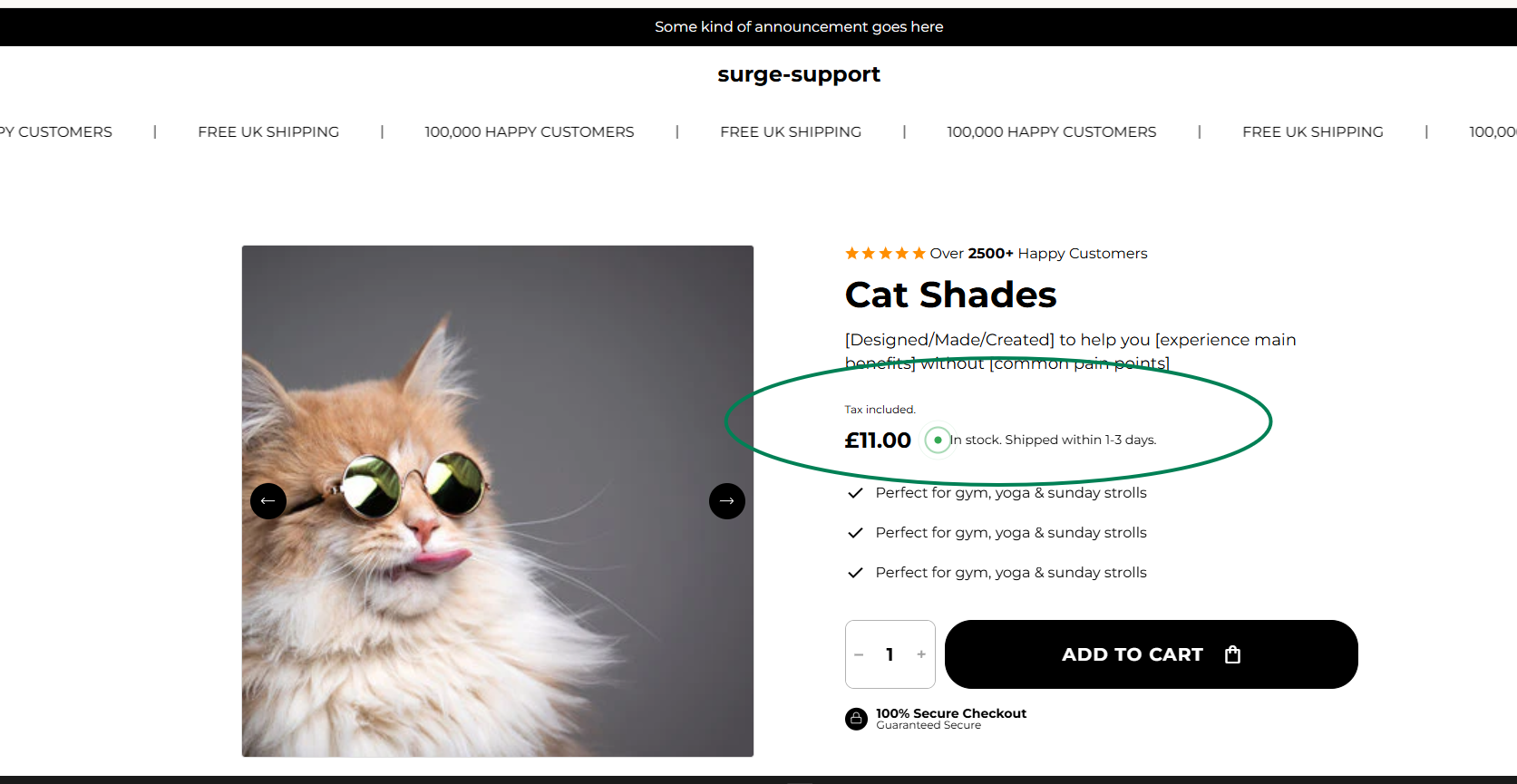
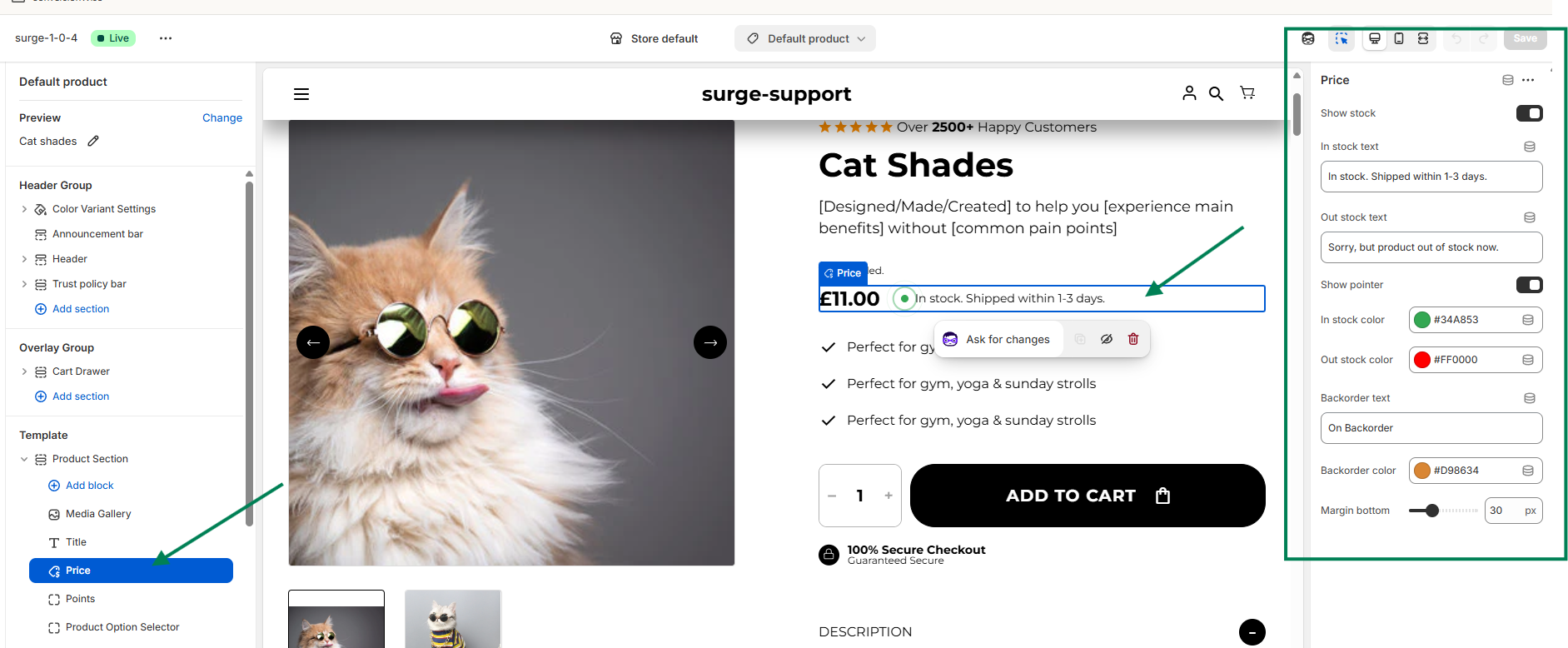
✅ In Stock TextExample: In stock.
This is the message shown when the selected variant is available.
Best Practice:
Keep it short and clear:
“In Stock”
“Available”
“Ready to Ship”
You may also add light urgency:
“Limited Stock”
“Only a few left”
❌ Out of Stock TextExample: Sorry, but product out of stock now.
This message appears when the selected variant is unavailable.
Best Practice:
Keep the tone friendly.
Optionally guide customers to alternatives:
“Currently unavailable”
“Out of Stock — Check other options”
“Sold Out — More coming soon”
? In Stock Color
Choose the color used for the in-stock message or badge.
Recommended:
Green (#34A853 style tone) for clarity and trust.
Ensure it contrasts well with your background.
? Out of Stock Color
Select the color for out-of-stock messaging.
Recommended:
Red for urgency
Gray for neutral tone
Avoid using green to prevent confusion
Tax and shipping text
Show tax and shipping text adds the "Tax included" note and, when your store has a shipping policy, a link to it. Both come from Shopify, so the note only appears if your prices actually include tax.
Position decides where it goes:
- Same row as the price (default) - directly after the discount badge, reading as part of the price line. If there is no room it wraps to the next line on its own.
- Own line below, right aligned - a separate right-aligned line under the price.
Same row is usually the better choice: the note belongs to the price, and a separate right-aligned line drifts away from it and costs a full row in the buy area. Pick the own line only when your price row is already crowded, for example with a long discount badge.
Pre-orders
Momentum can mark single variants as pre-order. The stock line then shows a pre-order message with the expected ship date, and the add to cart button gets its own label.
Where the settings are: the stock line next to the price and its texts and colors are set in the Title block, under Stock status (Show stock, In stock text, Pre-order text, Out stock text, Show pointer, the colors and Backorder text). The button label is set in the Add block.
1. Mark the variant as pre-order. Create two variant metafields under Settings → Custom data → Variants:
| Metafield | Type | Value |
|---|---|---|
custom.preorder | True or false | True for every variant you sell as pre-order |
custom.preorder_ship_date | Date | the expected ship date (optional) |
Then open the product, select the variant and fill in both fields.
2. Pre-order text (Title block → Stock status). Shown in the stock line when the selected variant is marked as pre-order, instead of the in-stock text. The default is "Pre-order. Ships on [date]". The placeholder [date] is replaced with the date from custom.preorder_ship_date, written like "Oct 15, 2026". If the variant has no ship date, [date] is simply removed, so write the text in a way that still reads well without it, or always fill in the date. The pre-order line uses the Backorder color. The ship date used to appear as a separate line under the stock text; it is now part of the Pre-order text through [date], so you decide where it goes in the sentence.
The pre-order text only appears when Shopify tracks inventory for the variant and the variant can be bought. Like all stock texts, it needs Show stock to be on.
3. Pre-order button text (Add block). The label of the add to cart button while a pre-order variant is selected, "Pre-order" by default. This setting now works: in earlier versions the button always showed the standard pre-order label, regardless of what you entered. The label also switches correctly when the customer changes between a pre-order variant and a normal one. Pre-order items are added to the cart with the line item properties Preorder: Yes and, if set, Preorder ship date, so you can recognise them in the order.
Only mark variants as pre-order when you can really ship them by the date you enter. If the date moves, update the metafield, and the product page updates with it.
How to Use the Price Block Effectively
You can fully customize the messaging and colors to match your brand tone and urgency strategy.
Examples:
Use “Limited Stock” in orange to create urgency.
Use a softer gray tone for backordered products.
Keep wording consistent across your store.
Clear stock messaging reduces hesitation and builds trust with customers at the moment of purchase.
Need Help?
If you need assistance customizing your Price block or optimizing your product page:
If you need help, contact our support team and we'll be happy to assist.
We’re always happy to help you get the most out of Momentum ?