
Appearance
Testimonial Section
**Overview
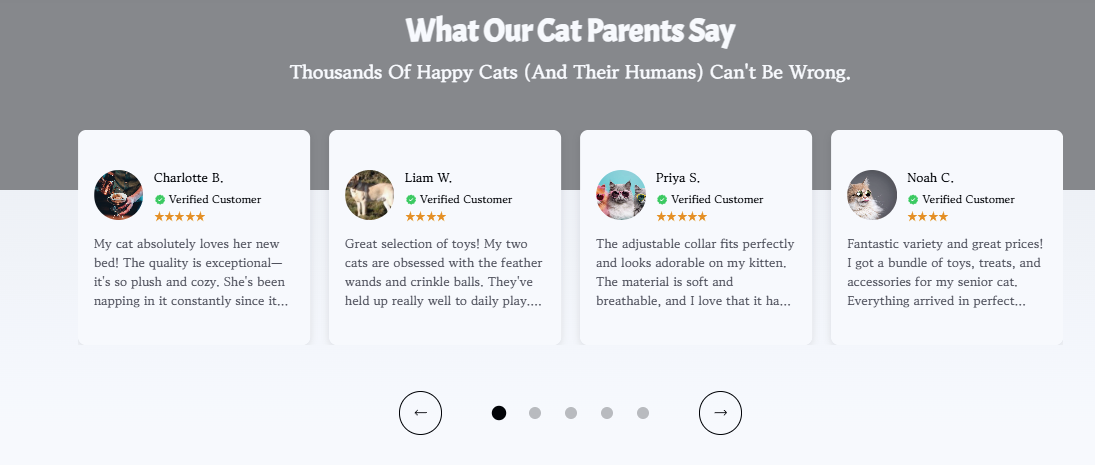
The Testimonial section in the Momentum theme helps you build trust by showcasing real customer experiences directly on your storefront. You can display multiple testimonials in an attractive, scrollable layout while customizing the section heading, colors, typography, background, and individual testimonial cards to match your brand.
**How to Add the Testimonial Section
- Navigate to **Online Store → **Momentum Theme.
- Click Edit Theme.
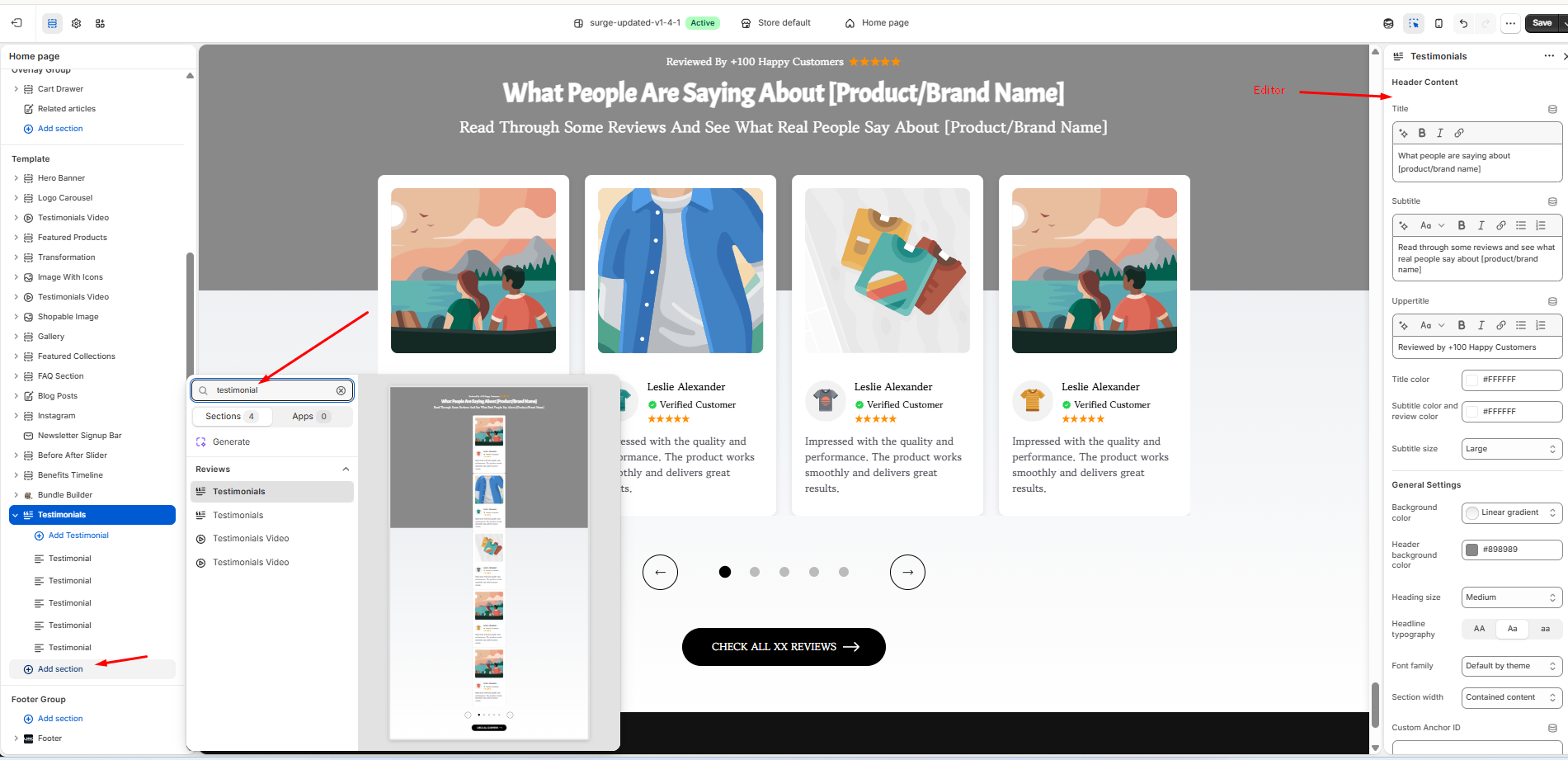
- Under the **Template panel, click **Add section.
- Search for Testimonial.
- Select the Testimonial section to add it to your page.
- Customize the section using the Testimonial section editor.
**Customizing the Testimonial Section
Once the section has been added, you can personalize it using the editor on the right-hand side.
**Header Content
Customize the introductory content that appears above your testimonials, including:
- Title
- Subtitle
- Upper Title
- Text formatting (bold, italic, links, lists, etc.)
- Title and subtitle colors
- Subtitle size
**General Settings
Adjust the overall appearance of the section by configuring options such as:
- Background color or gradient
- Header background color
- Heading size
- Headline typography
- Font family
- Section width and spacing (where applicable)
**Managing Testimonials
Each testimonial is added as an individual content block.
You can:
- Click Add Testimonial to create a new testimonial.
- Edit existing testimonial blocks.
- Reorder testimonials by dragging and dropping the blocks.
- Remove testimonials that are no longer needed.
This makes it easy to highlight your best customer reviews and keep your social proof up to date.
Rich Text Testimonials
Added in Momentum 1.1.0 (October 2026).
The Testimonial text of each testimonial block is now a rich text field. You can:
- put a key phrase in bold, e.g. the result the customer describes ("fits perfectly after 20 washes")
- use italic text
- add a link, e.g. to the product mentioned in the review
- split a longer review into several paragraphs or a short list
Existing testimonial texts keep their wording and are shown as a normal paragraph.
💡 Tip: Bold one short phrase per testimonial at most. Readers scan testimonials, and a single highlighted outcome per card is much easier to take in than several.
The section's button also has a new Button type setting: Custom link or Add to cart. See Section Buttons: Add to Cart & Go to Checkout for details.
**Pro Tip
Use authentic customer photos, names (with permission), star ratings, and specific feedback whenever possible. Testimonials that mention real product benefits or outcomes tend to build more trust and can help improve conversion rates.
**Closing
The Testimonial section is a simple but powerful way to reinforce customer confidence and provide social proof throughout your store. Regularly updating your testimonials with fresh customer feedback helps keep your storefront engaging and credible.