
Appearance
Testimonial Video Section
**Overview
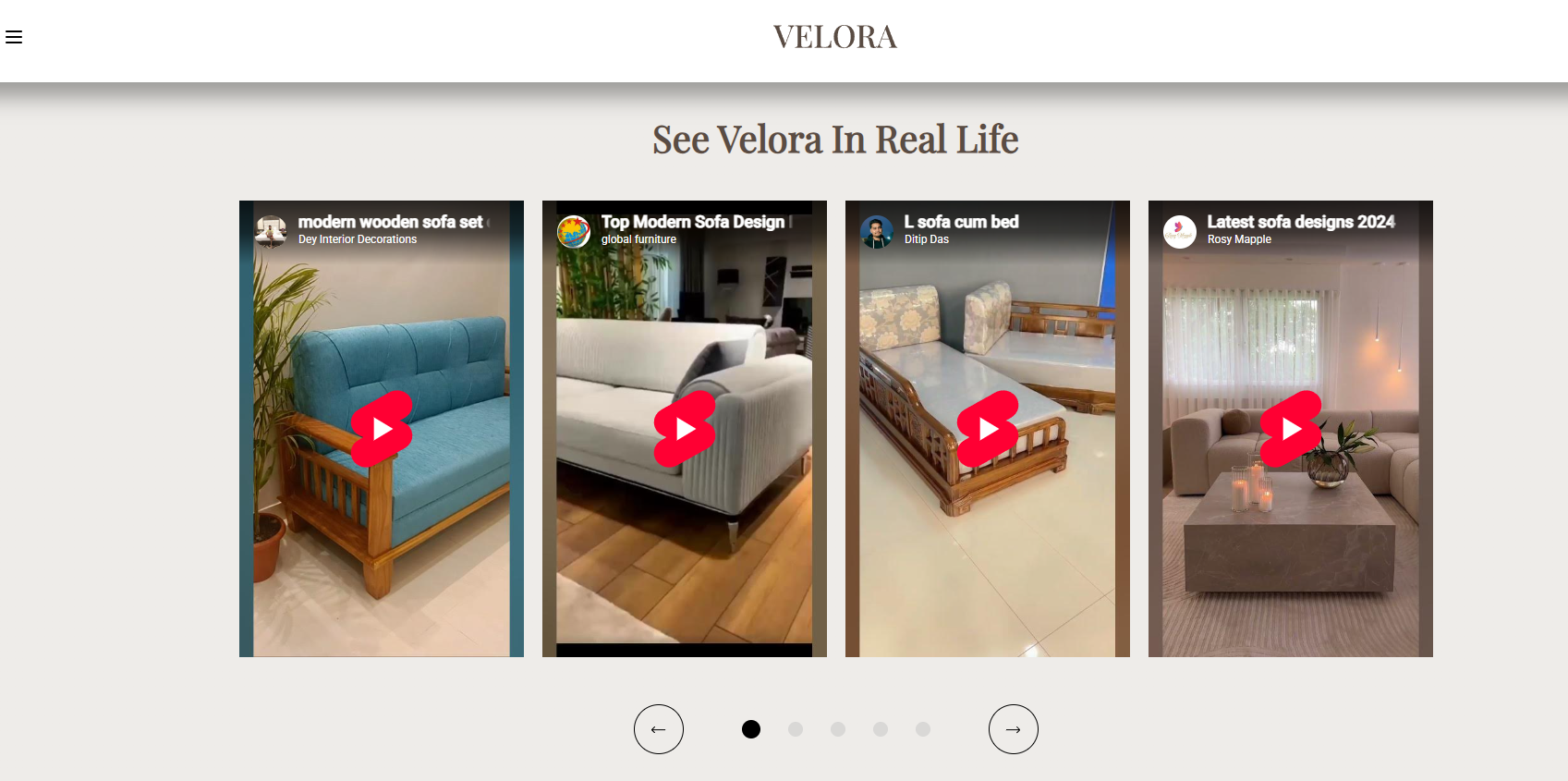
The Testimonial Video section allows you to showcase customer video reviews in an engaging, scrollable carousel. Video testimonials help build trust, demonstrate real customer experiences, and provide powerful social proof that can increase buyer confidence and improve conversion rates.
You can fully customize the section header, button, styling, and add multiple video testimonial cards using either **YouTube, **Vimeo, or Shopify-hosted videos.
**How to Add the Testimonial Video Section
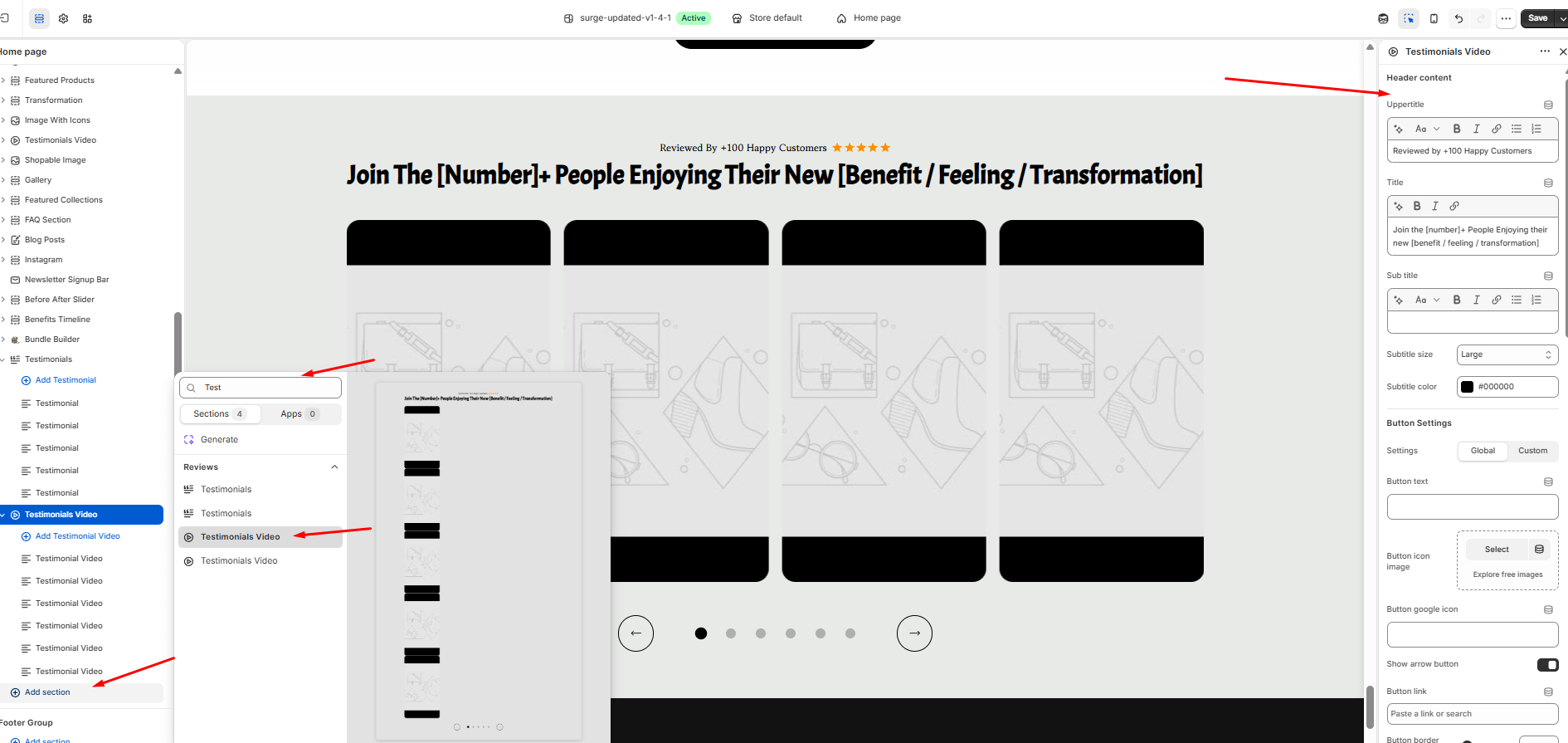
- Navigate to **Online Store → **Momentum Theme.
- Click Edit Theme.
- Under the **Template panel, click **Add section.
- Search for Testimonial Video.
- Select the Testimonial Video section to add it to your page.
- Customize the section using the Testimonial Video section editor.
**Customizing the Testimonial Video Section
Once the section has been added, you can personalize it using the settings available in the theme editor.
**Header Content
Customize the introductory content displayed above your video testimonials, including:
- Upper Title
- Title
- Subtitle
- Rich text formatting (bold, italic, links, lists, etc.)
- Subtitle size
- Subtitle color
**Button Settings
Add an optional call-to-action button above the testimonial videos to encourage visitors to view additional reviews.
Available options include:
- Button text
- Button icon image
- Google icon
- Show or hide the arrow icon
- Button link
- Button style and appearance
This is perfect for linking customers to a dedicated reviews page or collection of testimonials.
**Managing Testimonial Videos
Each video is added as an individual Testimonial Video block.
To add a new video:
Click Add Testimonial Video.
Open the newly created video block.
Add your video using one of the following methods: Paste a **YouTube or Vimeo URL into the Embed video from URL **field.
Select a Shopify-hosted video from your store files.
Set Show controls to Yes or No. For Shopify-hosted videos you can also turn on Autoplay and Loop (see below).
Repeat the process for additional testimonial videos.
You can also:
- Reorder video blocks by dragging and dropping them.
- Remove videos you no longer wish to display.
- Create a carousel containing multiple customer video testimonials.
Layout: Grid or Single
Added in Momentum 1.1.0 (October 2026).
When you add the section, the theme editor offers two presets: Testimonials Video Grid and Testimonials Video Single. You can switch between them at any time with the Layout setting:
- Grid (default) – several videos side by side in a swipeable row. Set how many are visible with Columns per row (desktop) (3, 4 or 5) and Columns per row (mobile) (1, 1.5 or 2). These two settings only appear with the Grid layout.
- Single – one video at a time across the full width of the section. With two or more videos, customers swipe or click through them in an endless loop.
💡 The former checkbox Show slide on full width has been removed. If you used it, set Layout to Single to get the same result.
Autoplay, Loop and Play Button
Each Testimonial Video block has these playback settings:
| Setting | What it does |
|---|---|
| Autoplay (hosted video only) | Off (default): the video shows its poster image with a play icon until the customer clicks it. On: the video starts playing by itself. Autoplaying videos are always muted, because browsers block autoplay with sound. |
| Show controls | Yes shows the player controls (play/pause, volume, progress bar), No (default) hides them |
| Loop (hosted video only) | Plays the video again from the start when it ends |
Autoplay and Loop only work with videos uploaded to Shopify (the Shopify-hosted video field). The poster of a Shopify-hosted video is the preview image Shopify generates for it. YouTube videos show their thumbnail with a play icon and only load the YouTube player when clicked, which keeps the page fast. Vimeo videos use the Vimeo player and never autoplay.
💡 Tip: Keep Autoplay off when the section shows several videos at once. Many videos playing at the same time are distracting and slow down the page. Autoplay works best with the Single layout.
Button Type
The optional button of this section now has a Button type setting: Custom link (as before) or Add to cart. See Section Buttons: Add to Cart & Go to Checkout for details.
**Pro Tip
Keep your testimonial videos short and authentic—around 15 to 60 seconds is ideal. Videos that quickly demonstrate a customer's experience, results, or transformation are more likely to capture attention and build trust than longer, heavily edited testimonials.
**Closing
The Testimonial Video section is an excellent way to add authentic social proof to your storefront. Featuring real customer experiences in video format helps visitors connect with your brand, increases credibility, and can positively influence purchasing decisions.
Need More Help?
If you need help, contact our support team and we'll be happy to assist.