
Appearance
Featured Products: Switch Between Stacked and Slider Layouts
Overview
The Featured Products section in Momentum gives you flexibility in how products are displayed on your storefront.
By default, products are shown in a stacked grid layout, allowing customers to view multiple products at once. If you'd prefer a more interactive experience, you can easily switch the section to a scrollable Slider layout, enabling customers to browse products horizontally using navigation controls.
Product Source: Manual vs. From Collection
Added in Momentum 1.0.0 (August 2026).
At the top of the section settings, Product source controls where the products come from:
- Pick manually (blocks) — the default. Add one product block per product, in the exact order you want. Best for hand-curated selections.
- From collection — choose a Collection and a Maximum products count (2–16). The section automatically shows the first products of that collection and stays up to date on its own.
The self-maintaining bestseller pattern: point the section at a collection and set the collection's sort order to Best selling in the Shopify admin (Products → Collections → your collection → Sort). Your top sellers now always appear first — no manual re-picking, ever. Both the grid and the slider layout work identically with either source.
This guide will walk you through changing the Featured Products section from the default stacked layout to the Slider layout.
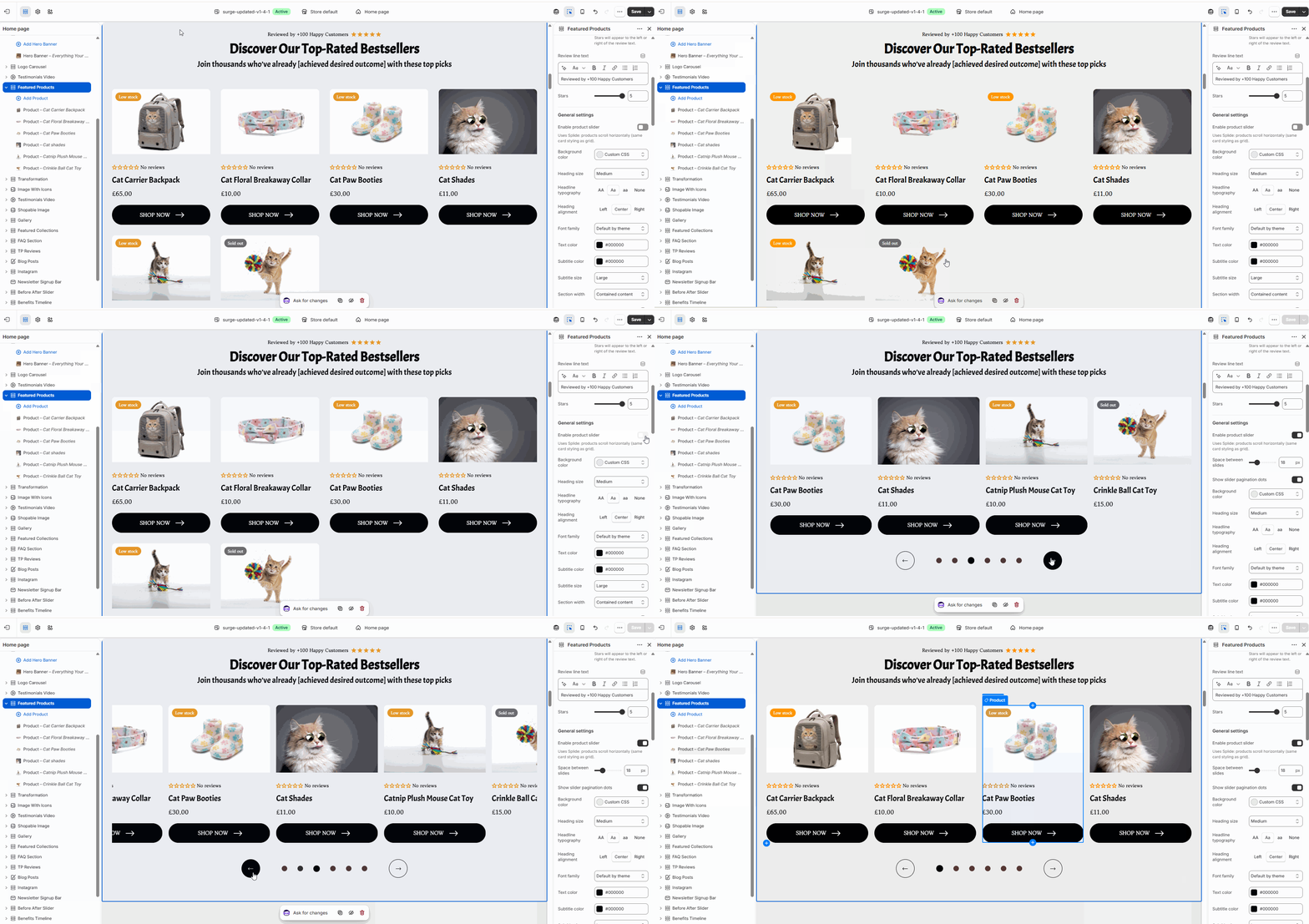
How to Enable the Featured Products Slider
Step 1: Open the Theme Editor
From your Shopify Admin:
Online Store → Themes → Momentum → Customize
This will open the Momentum Theme Editor.
Step 2: Select the Featured Products Section
In the left-hand sidebar:
- Locate the Featured Products section.
- Click on it to open the section settings.
Step 3: Enable the Slider Layout
Within the Featured Products settings panel:
- Find the Enable product slider option under General settings.
- Toggle the setting ON.
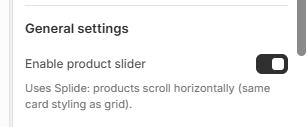
Once enabled, the product cards will switch from the default stacked layout to a horizontally scrollable slider.
Step 4: Customize the Slider (Optional)
When the slider is enabled, you can further customize the experience using additional settings such as:
- Space between slides
- Slider pagination dots
- Other section styling options available in the editor
Adjust these settings to match your store's design and customer experience goals.
Pro Tip
Use the Slider layout when showcasing larger collections or best-selling products. It helps keep the page clean and compact while still allowing customers to browse multiple products without taking up excessive vertical space.
For smaller product selections, the default stacked layout may provide better visibility since customers can see all products immediately without scrolling.
You're All Set!
Your Featured Products section can now be displayed either as a traditional stacked product grid or as an interactive slider, giving you greater control over how products are presented to your customers.
If you need help, contact our support team and we'll be happy to assist.