
Appearance
Shop By Category Section
Overview
The Shop By Category section is a visual navigation tool designed to help customers find exactly what they are looking for at a glance. By showcasing your main collections with high-quality imagery, you can reduce friction in the shopping journey and improve overall site exploration. This section acts as a visual directory for your store. Instead of relying solely on menu links, you can use "Shop By Category" to:
Improve UX: Allow customers to browse via images, which is often faster and more engaging than text.
Highlight Key Collections: Direct traffic toward your most popular or newest product categories.
Enhance Aesthetics: Add a professional, curated look to your homepage or landing pages.
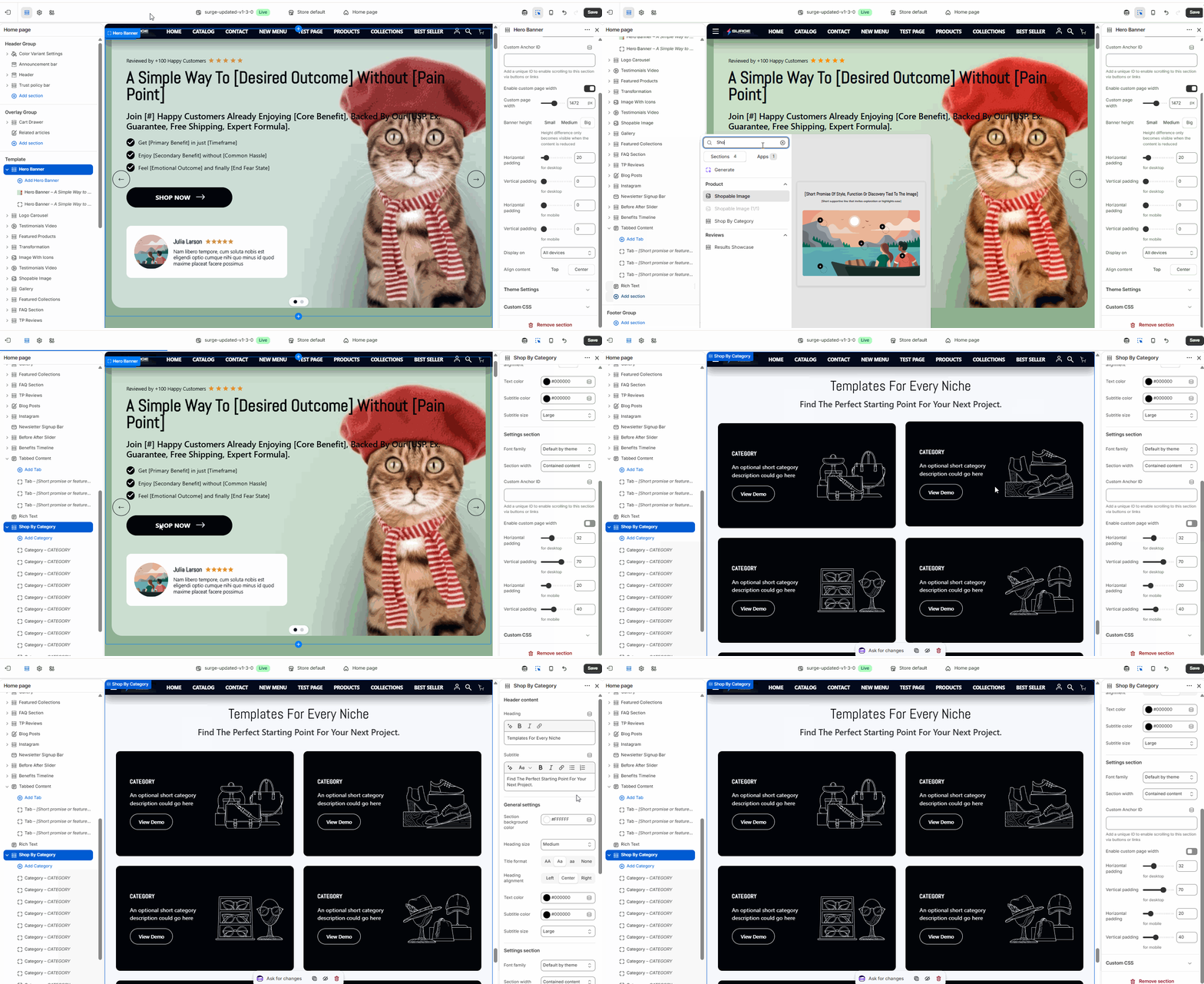
**Step-by-Step Setup Guide
Follow these steps to set up and customize the Shop By Category section in your Momentum theme:
**1. Add the Section
Open your Shopify Theme Editor.
In the **Template sidebar, click **Add Section.
Search for Shop By Category and click to add it to your page.
**2. General Section Settings
Click on the Shop By Category header to adjust the overall layout: Heading & Subheading: Add a title (e.g., "Shop Our Favorites") and a brief description to guide your visitors.
Layout Style: Choose between a **Grid or **Slider layout depending on how many categories you want to display.
Image Shape: Customize the look of your category images (e.g., Square, Rounded, or Circular).
Padding: Use the **Vertical and **Horizontal Padding sliders to adjust the space around the section for both desktop and mobile views.
**3. Customize Category Blocks
Each category is represented by an individual block within the section: Select Collection: Choose the specific collection you want this block to link to.
Custom Image: By default, the section will use the collection's featured image. You can override this by uploading a Custom Image for a more specific look.
Category Label: Edit the text displayed on the category (e.g., "Men's Apparel" or "New Arrivals").
Button/Link Style: Toggle whether the category name appears as simple text or a styled button overlay.
**4. Save and Preview
Reorder the blocks in the sidebar to prioritize your top-performing categories.
Click Save in the top right corner to update your live store.
**Need Further Assistance?
If you need help, contact our support team and we'll be happy to assist.