
Appearance
Sticky Add to Cart
Overview
The Sticky Add to Cart feature helps keep your product's Add to Cart button accessible as customers scroll through the product page. This can improve the shopping experience by making it easier for customers to add products to their cart without needing to scroll back to the product form.
In Momentum, you can control exactly when the Sticky Add to Cart bar appears by adjusting the Sticky add to cart trigger setting within the Product Section.
How to Configure the Sticky Add to Cart
Step 1: Open the Theme Editor
- From your Shopify admin, go to Online Store → Themes.
- Locate your Momentum theme and click Edit Theme.
Step 2: Open a Product Page Template
- In the theme editor, navigate to a product page.
- Select the Product Section from the left-hand sidebar.
Step 3: Locate the Sticky Add to Cart Setting
- In the Product Section settings panel, scroll to the General Settings area.
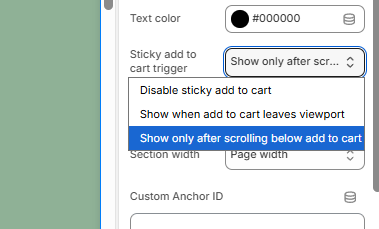
- Find the Sticky add to cart trigger dropdown.
Step 4: Choose Your Preferred Trigger
Click the dropdown and select one of the available options:
- Disable sticky add to cart – Turns the feature off.
- Show when add to cart leaves viewport – Displays the sticky bar once the original Add to Cart button is no longer visible on the screen.
- Show only after scrolling below add to cart – Displays the sticky bar only after the customer has scrolled past the Add to Cart section.
Step 5: Preview the Behavior
After selecting a trigger option:
- Scroll through the product page preview.
- Verify that the Sticky Add to Cart bar appears according to your selected setting.
- Compare the behavior of each trigger option to determine which best fits your store's shopping experience.
Step 6: Save Your Changes
Once you're happy with the configuration, click Save in the top-right corner of the theme editor.
Tips
- Use Show when add to cart leaves viewport if you want the sticky bar to appear as soon as the primary Add to Cart button is no longer visible.
- Use Show only after scrolling below add to cart if you prefer a less aggressive approach and only want the sticky bar to appear after customers have moved beyond the product purchase area.
Need Help?
If you need help, contact our support team and we'll be happy to assist.
Variant selectors in the bar
By default the bar shows small dropdowns for every product option (e.g. color and size), so customers can pick their variant right in the bar without scrolling back up - the previous behavior would otherwise add whatever was selected on the page (usually the default variant).
- The dropdowns drive the main option selector on the page: picking a value in the bar activates the matching option pill, so price, availability, the gallery image and the sticky bar itself all update through the existing logic.
- Selecting options on the page updates the bar dropdowns too - both stay in sync.
- Turn them off with "Show variant selectors in sticky bar" (next to the sticky trigger setting); the bar then shows the selected variant as plain text like before.
- Products with only a default variant never show dropdowns.
Compare-at price in the bar
When the selected variant has a real compare-at price (higher than the actual price), the bar shows it struck through next to the price - reinforcing the discount right at the moment of decision. Variants without a compare-at price show the price alone; nothing is ever invented. Toggle with "Show compare-at price in sticky bar" (default on).
The footer stays reachable
A fixed bar at the bottom of the screen covers whatever the page ends with — which on a product page is the footer, with the imprint, the privacy policy and the copyright line in it. Content you cannot scroll to is content that is not there, and in some markets those links are legally required to be reachable from every page.
The theme therefore reserves the height of the bar at the end of the document while the bar is on screen, and releases it again when the bar slides away. You can scroll to the very last line of the footer as usual. Nothing to configure, and it adjusts itself when the bar changes height — on a phone rotation, or when a long variant name wraps to a second line.
Added August 2026. Before that the bar covered the last rows of the page.